
“A hull is a promise. What you bolt onto it decides whether you keep it.”
— Fleet Admiral Selene Voss
One screen, two tabs
The Shipyard button on the HUD opens on MY SHIPS, with BLUEPRINTS beside it. Along the top are your ship bay count and three counters, BUILD, RESEARCH and REPAIR, each reading running / allowed.
| Tab | What it is for |
|---|---|
| MY SHIPS | Every ship you own in one grid: inspect, repair, outfit or scrap it |
| BLUEPRINTS | Every hull by class and role: read its specs, research it, build it |
My ships
The grid shows every ship you own, including the ones still being built. Narrow it with the filters ALL, DOCKED, IN FLEET, DAMAGED and BUILDING (each shows a count), with the faction rail, and reorder it with SORT.
Click a ship to fill the panel beside the grid: its name, class and Mark, its health and its status. Drag on the 3D preview to turn the ship around.
| Status | Meaning |
|---|---|
| READY | Docked at your base and free to use |
| IN FLEET | Assigned to a fleet that is at base (the panel names the fleet) |
| DEPLOYED | Out with its fleet |
| BUILDING | Still under construction |
| DAMAGED | Needs repair; shown with its health percent |
| IN REPAIR | A repair is running |
From the same panel you can OUTFIT, REPAIR or SCRAP the ship. OUTFIT opens Ship Outfitting on that ship and returns you to MY SHIPS when you close it. It is unavailable for a ship that is still building, damaged, being repaired or assigned to a fleet.
Blueprints
BLUEPRINTS lays out every hull by class and role. There are ten classes, from the Fighter to the Dreadnought, and seven roles in each class. The role is the last word of every hull name:
| Role | Name ending |
|---|---|
| Tank | Bulwark |
| Support | Warden |
| Assault | Striker |
| Scout | Outrider |
| Siege | Breaker |
| Interceptor | Talon |
| Command | Sovereign |
Pick a class tile, then a hull. The faction rail lets you look at another faction's hulls. Every hull tile carries a tag that says where it stands:
| Tag | Meaning |
|---|---|
| BUILD | You can build it now |
| RESEARCH | You can research it now |
| RESEARCHING / BUILDING | Already in your research or build queue |
| LEVEL and a number | Needs that player level |
| LAB and a number | Needs that Research Laboratory level |
| BAY FULL | No room left in your ship bay |
| QUEUE FULL | That queue has no free place |
| TOO COSTLY | You can't afford it yet |
Another faction's hull reads LOCKED, and its panel says what opens it: serving that faction, or Exalted standing with it (see your faction's designs).
The panel on the right describes the hull you last clicked. Use the Mark arrows to see how its numbers grow from MK 1 upwards, and FULL SPECS to open its whole stat sheet. Hold your pointer over a resistance icon on that sheet to see which kind of weapon damage it protects against. Drag the big ship in the middle to turn it.
Compare every hull's stats in the Ships reference.
Research, then build
Small hulls can be built straight away. Bigger hulls must be researched first. Research costs twice the hull's build cost and needs a minimum player level:
| Class | Research needed | Research at player level | XP per ship built |
|---|---|---|---|
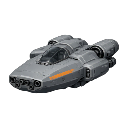 Fighter | No, build straight away | — | 50 |
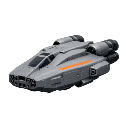 Cutter | No, build straight away | — | 101 |
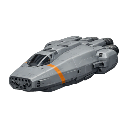 Corvette | No, build straight away | — | 205 |
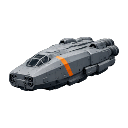 Frigate | Yes | 20 | 416 |
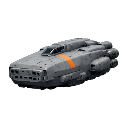 Destroyer | Yes | 25 | 843 |
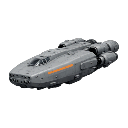 Cruiser | Yes | 30 | 1,708 |
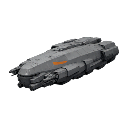 Battlecruiser | Yes | 35 | 3,462 |
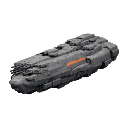 Battleship | Yes | 40 | 7,014 |
 Carrier | Yes | 45 | 14,213 |
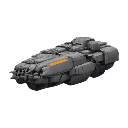 Dreadnought | Yes | 50 | 28,800 |
Shown for the Standard Issue (Unaligned) Striker of each class; every faction follows the same pattern.
Both RESEARCH and BUILD take their cost when you press them. A ship you have started shows on MY SHIPS under BUILDING at once. When the build finishes it turns READY. The first time you build a design you earn player XP: the hull's XP value. Building the same design again earns nothing, so building something new is what levels your commander up (Levels and Progression).
While a hull is building, its button reads BUILD ANOTHER: press it to queue another of the same hull, as long as your build queue has room. With the queue full it stays on screen but waits, and says why.
CANCEL BUILD and CANCEL RESEARCH ask you to confirm, then return the full cost. INSTANT finishes the running item for Coins and shows its price first; the end of the timer is free, more of it for new commanders (see Finishing early with Coins). A Coin finish does not return any resources.
The queues
Each queue runs one item at a time; the rest wait their turn, and the next one starts by itself when the running one finishes or is cancelled. Click the BUILD, RESEARCH or REPAIR counter to drop down that queue, with a name and a countdown for each item. From the list you can finish the running item with Coins or cancel any row. Click the lit counter again to close it.
Your player level shortens build and research times:
| Player level | Build speed | Research speed |
|---|---|---|
| Start | — | — |
| Level 5+ | +5% | +5% |
| Level 10+ | +10% | +10% |
| Level 20+ | +20% | +15% |
| Level 30+ | +30% | +25% |
| Level 36+ | +35% | +25% |
| Level 37+ | +35% | +30% |
| Level 43+ | +40% | +30% |
| Level 44+ | +40% | +35% |
| Level 50+ | +45% | +40% |
A bonus shortens a timer to time ÷ (1 + bonus).
The Shipyard building
How much your shipyard can hold depends on the Shipyard building in your base. Your shipyard level is that building's Mark. With no Shipyard you are at level 0, which still works, just at the floor:
| Shipyard building | Ship bay | Build queue | Research queue | Fleet slots |
|---|---|---|---|---|
| No Shipyard | 5 | 1 | 1 | 2 |
| Mk1 | 10 | 2 | 1 | 3 |
| Mk2 | 18 | 2 | 2 | 4 |
| Mk3 | 30 | 3 | 2 | 5 |
| Mk4 | 48 | 3 | 3 | 6 |
| Mk5 | 70 | 4 | 3 | 8 |
Ship bay = ships you own plus ships being built. Each queue runs one item at a time; the number is how many it can hold.
Ships being built count against your bay as well as finished ones. Build the Shipyard from the Base View like any other building, and upgrade its Mark to raise every limit in the table. A base has one Shipyard: a second adds nothing, so the build list offers it as "One per base: upgrade it instead".
Repairing a ship
Select a damaged ship on MY SHIPS. The line under the buttons gives the cost and the time before you commit.
| Button | How it works |
|---|---|
| REPAIR | Pays the materials and joins the repair queue. The ship reads IN REPAIR until it is back at 100% |
| INSTANT | Repairs it on the spot without taking a queue place. Costs the Coins on the button and the repair's materials; you need both |
Cancelling a running repair asks first and returns the share of the cost that matches the time left. Repairs keep running while you are offline. To repair a whole fleet in one click, see Command the Sector.
Scrapping a ship
SCRAP on MY SHIPS removes a ship for good. The line under the button says what you get back, and the game asks you to confirm because it can't be undone. Scrapping returns half the ship's build cost, puts its fitted modules back in your inventory and frees a place in your ship bay.